Observium
- HostBill (Unlicensed)
- HostBill
- HostBill
Overview
Observium is an autodiscovering network monitoring tool which includes support for a wide range of network hardware and operating systems. HostBill integration with Observium gives you the ability you to keep track of data transfer, display selected usage graphs in admin and client interface and bill based on total transfer, averages or 95th percentile.
Activating the module
- If the module is included in your HostBill edition you can download it from your client portal.
- If the module is not included in your HostBill edition you can purchase it from our marketplace and then download it from the client area.
- Once you download the module extract it in the main HostBill directory.
- Go to Settings → Modules → Hosting Modules, find and activate Observium module.
Connecting HostBill with Observium
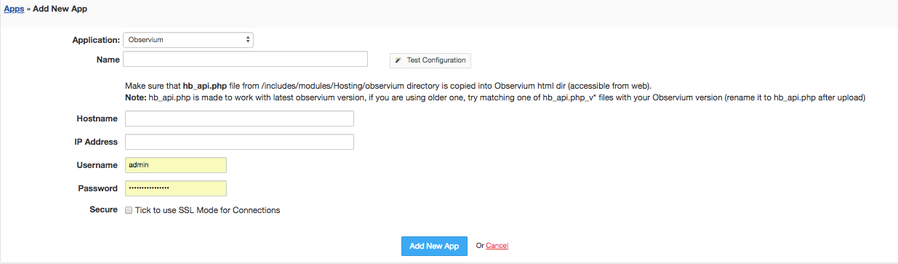
- Make sure that hb_api.php file taken from includes/modules/Hosting/observium of your HostBill installation directory (usually /home/hostbill/public_html/) is uploaded into main directory of your Observium installation (one that is accessible from web).
- Proceed to Settings → Apps → Add new App
- From Applications list select Observium
- Enter:
- Name - Name of this connection
- Hostname
- IP Address
- Username
- Password
4. Verify entered credentials by clicking Test Connection to check if HostBill can connect
5. Save Changes
Important:
- Do not change graph type from "default" to other values (like mrtg) in Observium, otherwise bandwidth calculations will not work properly.
- hb_api.php currently only works if your observium auth method is set to MySQL (which is default)
Creating your first package with billable bandwidth overages
- In HostBill go to Settings → Products & Services, and Add new order page
- From Order Types select Colocation or Dedicated Servers
- After creating order page add new product in it, provide its name and Save changes
- In billing settings choose Bandwidth billing, configure your limits and pricing.
- From Connect with App section select your Observium module and app server created in previous steps.

For more generic product configuration details including price, automation, emails settings refer to Product Configuration article.
Configuring Client Functions
In Products & Services → Your Order Page → Your Product → Client Functions you can control what features customer will have access to in client portal, by clicking Enable/Disable next to the given option.
Use Edit button to adjust function appearance in the client portal.
For Observium you can enable the following client functions dedicated to this module:
- Bandwidth Usage Graphs - shows bandwidth utilization graphs to customers for their service
As well as number of standard client functions, such as
- Change Billing Cycle
- Change Label
- Change Ownership
- Edit Forms
- Graphs
- Login Details
- Manual Service Renew
- New Direct Link
- Related Services
- Service Auto Renewal
Connecting port from Observium in HostBill
- In HostBill adminarea go to Account with package configured with Observium module
- Proceed to "Bandwidth" tab
- Click on "Select switch/ports to connect"
- Select switch & port fetched from Observium to monitor, make sure it has graph generated in Observium